
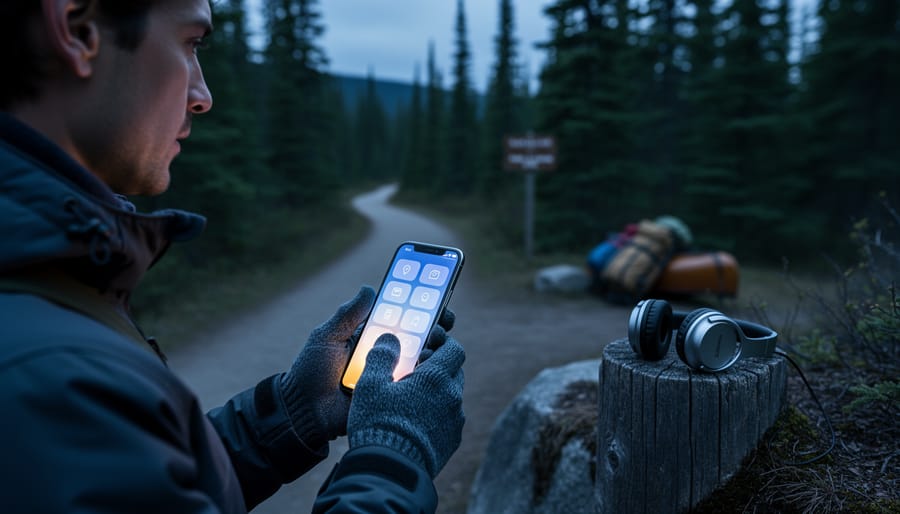
Activating voice recognition on your smartphone or device takes about two minutes and transforms how you navigate trails, record wildlife observations, and access maps hands-free while exploring Ontario’s parks. Whether you’re using an iPhone, Android, or tablet, the process involves opening your device settings, locating the voice or accessibility menu, and enabling the voice assistant (Siri, Google Assistant, or Alexa). Once active, you can ask for directions to the nearest trailhead, dictate camping notes, or pull up park regulations without fumbling with gloves or a wet screen.
For outdoor enthusiasts, this feature becomes essential when you’re carrying gear, wearing winter gloves at Algonquin in February, or need quick information mid-hike. I learned this the hard way during a canoe trip when I had to stop paddling every time I wanted to check my route. Voice commands let you stay focused on the trail ahead while your device handles the logistics. The setup works offline too if you download the right language packs, a lifesaver in remote areas where cell service drops. Most devices also let you customize wake words and adjust sensitivity, so your phone won’t activate every time the wind picks up or a fellow hiker shouts nearby.
What You’ll Need to Get Started

Before you head out to explore Ontario’s stunning trails and campsites, gather everything you need for seamless voice-activated navigation. Setting up voice recognition properly means having the right gear ready, so you won’t fumble with settings once you’re deep in the wilderness.
- A compatible smartphone (iPhone 8 or newer, Android 9.0+) with updated operating system
- Your chosen interactive travel guide app downloaded and installed
- Reliable power bank (10,000mAh minimum) to keep devices charged during long hikes
- Bluetooth headphones or portable speaker for clear audio feedback
- Offline map packages downloaded before departure
- Protective phone case rated for outdoor conditions
Most Ontario park visitors rely on apps like Parks Ontario Explorer, AllTrails, or Komoot for voice-guided experiences. Each offers voice command features, though functionality varies between platforms. Make sure you’ve installed your preferred app and created an account while still at home with strong WiFi.
Battery life matters more than you’d think. Voice recognition drains power faster than passive GPS tracking, so carry safer smart gear like a rugged power bank rated for at least two full phone charges. The last thing you want is losing navigation capabilities halfway through a backcountry route.
Here’s an insider tip: test your entire setup in airplane mode before leaving for the park. Many Ontario parks, especially Algonquin’s interior sections and Killarney’s backcountry trails, have zero cell coverage. Download offline voice packs and map regions for your destination while connected to WiFi. Walk around your neighborhood testing voice commands with airplane mode enabled. If it works there, you’ll have reliable voice navigation even in the remotest corners of Ontario’s wilderness.
Before You Begin: Important Considerations
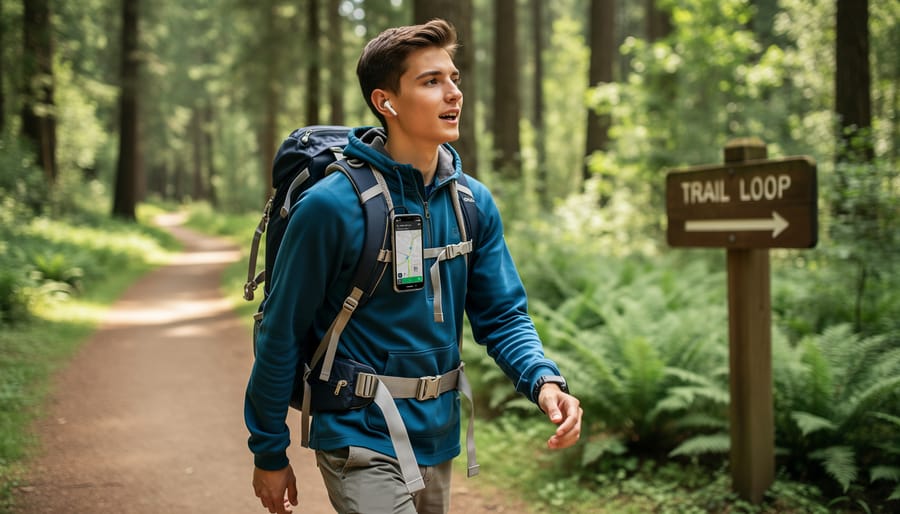
Voice recognition is powerful, but it’s not always the right tool for every moment in Ontario’s parks. Before you activate this feature, consider when silence and discretion matter more than convenience.
Crowded trails present another challenge. Shouting commands at your phone while hikers are trying to enjoy nature’s soundtrack isn’t just annoying, it disrupts the outdoor experience everyone came for. Save voice activation for open stretches where you won’t become the trail’s unwanted narrator.
Battery life deserves serious attention. Voice recognition drains power faster than manual app use, especially in cold weather when batteries already struggle. Pack a fully charged power bank, and consider limiting voice features to essential moments rather than casual queries. Test your setup’s battery impact on a short hike before committing to a full-day adventure.
Check your app permissions before leaving cell range. Voice recognition requires microphone access, but review what data your travel app collects and shares. Many apps offer offline voice packs that work without internet connectivity, essential for Ontario’s backcountry where service disappears. Download these packs over WiFi at home, not while burning through your data plan at a park entrance.
Minimize your audio footprint. The same eco-friendly principles that discourage playing music on trails apply to voice commands. Keep your volume low, use headphones when possible, and remember that preserving the natural soundscape is part of responsible park use.
Step-by-Step: Activating Voice Recognition
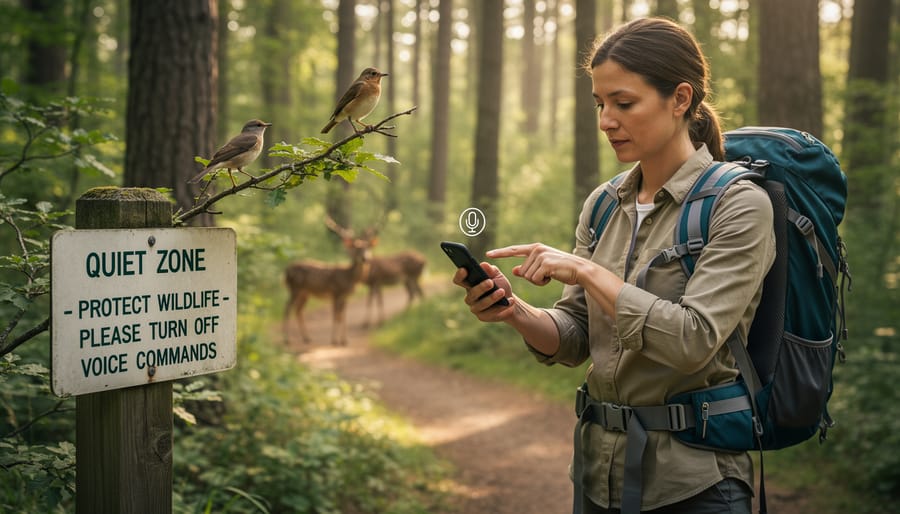
Enable Voice Access on Your Device
Before you hit the trail, you need to activate voice recognition at your device’s operating system level. This foundational step ensures your travel app can tap into your phone’s microphone and voice processing capabilities.
For iPhone users: Open Settings, scroll to Siri & Search, and toggle on “Listen for ‘Hey Siri'” or “Press Side Button for Siri.” Head to Accessibility > Voice Control and enable it if you want hands-free operation beyond Siri. The system will download voice files, connect to WiFi first to avoid eating through your data plan.
For Android users: Navigate to Settings > Google > Search, Assistant & Voice > Voice Match, then enable “Hey Google.” You’ll train the system to recognize your voice through a few sample phrases. Next, visit Settings > Accessibility > Voice Access and turn it on. Android’s microphone is sensitive enough to pick up commands even with moderate background noise, but you’ll still want to test it before you’re halfway up a trail at Killarney Provincial Park.
Both systems let you adjust voice speed and language preferences. Choose your download options wisely, offline voice packs are essential for Ontario’s backcountry areas where cell service vanishes quickly.
Activate Voice Commands in Your Travel App
Once you’ve enabled voice access on your device, open your travel guide app and head to the settings menu. Look for options labeled “Voice,” “Voice Commands,” or “Accessibility.” Tap this section to begin the setup process.
The app will prompt you to grant microphone access. Select “Allow” or “Allow While Using App”, both work fine, though the latter conserves battery when you’re not actively navigating. You’ll see a brief message confirming the permission is active.
Next, you’ll choose a voice profile. Some apps offer multiple recognition engines optimized for different accents or outdoor conditions. If you’re exploring Bruce Peninsula’s windy clifftops or Algonquin’s dense forests, pick the “outdoor” or “noisy environment” profile if available. This helps the system filter out wind and rustling leaves.
Here’s where things get crucial for Ontario park trips: download offline voice packs before you leave home. Scroll to the language and offline settings within the voice menu. Select your language pack and tap download. These files are typically 50-150 MB, so use WiFi rather than cellular data. Without this pack, voice recognition won’t function in Killarney’s backcountry or other areas with spotty cell service.
Test the activation by saying your app’s wake word, often something like “Hey Guide” or “Travel Assistant.” If the interface lights up or chimes, you’re ready to hit the trails with hands-free navigation at your command.
Calibrate for Outdoor Environments
Once you’ve granted the necessary permissions, you’ll want to train the system for Ontario’s unpredictable outdoor conditions. Wind gusts across Lake Ontario’s shoreline or echoes bouncing off the Canadian Shield rock faces can confuse voice recognition that works perfectly indoors.
Start by finding a quiet spot at your campsite or trailhead. Open your travel app’s voice settings and look for “environmental calibration” or “ambient noise adjustment.” Most apps will ask you to speak a few test phrases while the system analyzes background sounds. If you’re planning a camping trip in Ontario’s provincial parks, run this calibration near your tent where wind patterns are similar to what you’ll experience while hiking.
Test the system in various conditions before hitting the trail. Try speaking normally while walking, then with a moderate breeze, and finally while standing near moving water if your route includes waterfalls or rivers. The app learns to filter these sounds from your actual commands.
For canyon hikes where echo creates challenges, speak slightly slower and more deliberately than usual. The Niagara Escarpment trails are notorious for this. Position your device’s microphone away from direct wind when possible, using your body as a natural windbreak, or tuck it partially inside your jacket collar during particularly gusty moments.
Most systems improve with use, so don’t worry if accuracy seems low initially. The more you use voice commands on Ontario’s hiking trails, the better it adapts to your voice and typical outdoor environments.
Testing and Troubleshooting Your Setup
Once you’ve activated voice recognition, it’s essential to verify it works reliably before you venture deep into Ontario’s wilderness. Start with simple test commands in a quiet environment: try “Show me the nearest trail,” “Where’s the closest campsite?” or “Navigate to Algonquin Park lookout.” Your app should respond within two to three seconds with clear directions or information displays. If it responds correctly indoors, take your device outside for a real-world test in your backyard or a nearby park.
The real challenge appears when you’re actually on the trail. Wind noise is the biggest culprit for failed commands in outdoor settings, especially along exposed ridges or lake shores. Hold your device closer to your mouth and speak slightly louder than normal conversation volume, you’re not shouting, but projecting clearly. If background noise from rushing waterfalls or fellow hikers interferes, try cupping your hand around the microphone or using headphones with a built-in mic positioned near your mouth.
Accent recognition can trip up even well-calibrated systems. The trick is to enunciate clearly and use complete phrases rather than fragments. Instead of saying “trail map,” try “Show me the trail map for this area.” If the app consistently misunderstands certain words, check your language settings and consider training the voice profile again in the app’s settings menu.
Why isn’t my voice recognition responding at all?
Check that your microphone isn’t blocked by a phone case and confirm you’ve granted microphone permissions to the app in your device settings. Also verify you’re using the correct wake word if your app requires one.
How can I improve accuracy in windy conditions?
Position yourself with your back to the wind when giving commands, or switch to a headset with a noise-cancelling microphone. Some apps also have a “boost microphone sensitivity” option for outdoor use.
What should I do if the app understands me but gives wrong information?
Rephrase your command more specifically, say “hiking trails near me” instead of just “trails,” or include the park name for better context.
Command phrasing matters more than you’d think. Voice recognition systems work best with natural questions like “What’s the distance to High Falls?” rather than robotic keywords. When you’re moving, pause briefly before speaking to let any motion-related audio settle, then deliver your command at a steady pace. Test these scenarios before your trip: asking for water refill stations while walking, requesting wildlife safety information, and querying current location coordinates, all commands you’ll genuinely need on Ontario’s trails. If something fails repeatedly, note which commands work consistently and build your outdoor vocabulary around those reliable phrases.
Getting the Most from Voice-Activated Guides
Start with simple, direct commands rather than full sentences. “Directions to Webster’s Falls” works better than “Can you please give me directions to Webster’s Falls?” Your device processes shorter phrases faster, especially in areas with spotty connectivity. I learned this the hard way on the Bruce Trail when my overly polite requests timed out while my hiking partner’s crisp “nearest campsite” got instant results.
Chain your requests strategically when planning multi-point routes. Ask “How far to Lookout Point?” then immediately follow with “Water sources along the way?” once you hear the distance. Modern AI travel template systems remember context from your previous question, so you don’t need to repeat the destination name.
For group hikes, designate one person as the “navigator” rather than everyone activating voice recognition simultaneously. This conserves battery across multiple devices and minimizes audio pollution in quiet forest settings. We do this religiously at Algonquin, one phone handles navigation while others stay in airplane mode, preserving charge for emergency calls and photos.
Integrate voice commands with your existing apps by asking for cross-references. “Show campsite on AllTrails” or “Add this viewpoint to Google Maps” creates a layered navigation experience. Many AI park guides now sync with calendar apps too, letting you verbally log your location timestamps for trip journals without stopping to type.
The most useful insider tip? Learn your app’s shortcut commands. Most systems let you create custom voice phrases for frequent requests. Set “home base” to mean your campsite coordinates, or “snack spot” for your favorite rest area. These personalized commands make returning to key locations effortless, especially after a long day when you’re too tired to fumble with maps.
You’ve just unlocked a smarter, safer way to explore Ontario’s incredible parks and trails. With voice recognition activated on your interactive travel guide, you can keep your hands free for snapping photos, steadying yourself on rocky paths, or simply soaking in the scenery while your device handles navigation and information. No more fumbling with your phone on a narrow trail or missing a sunrise because you were staring at a screen.
Before your next adventure, take ten minutes to test your setup at home. Run through a few practice commands, confirm your offline voice packs are downloaded, and make sure your battery is charged. That small investment now means you’ll arrive confident and ready to explore, whether you’re planning your dream nature escape in Algonquin or discovering hidden waterfalls in Bruce Peninsula.
Voice-activated guides aren’t just convenient, they’re transformative. They let you stay present in the moment, react quickly to trail conditions, and share the experience with your hiking companions instead of isolating yourself behind a device. Ontario’s wilderness is calling. Answer it hands-free.










+ There are no comments
Add yours